 how-to
How Do You Digitize Paper Maintenance Logs?
Quick Summary
To digitize paper maintenance logs, plan your data fields first, then scan the pages in small batches, run OCR, and verify key identifiers like asset IDs, dates, and part numbers by hand. Sort the records by asset so each machine gets its own searchable history, then move them into a spreadsheet, CMMS, or custom app.
- List all log sources and start with equipment that has active repair history.
- Define a consistent template with fields such as asset ID, date, symptom, and parts used.
- Keep the original paper until digital copies are checked and verified.
- Spot-check OCR output and correct machine numbers, dates, and part numbers first.
- Test the migration with one asset and one technician before loading everything.
Table of Contents
- Why Digitize Paper Maintenance Logs Now
- Plan Your Digitization Project Before You Scan
- Scan, Convert, and Check Your Records
- Organize Records by Asset and Build Equipment Maintenance History
- Choose Where Records Live: Spreadsheet, CMMS, or Custom App
- Start Your First Digitized Maintenance Log This Week
- Frequently Asked Questions
Why Digitize Paper Maintenance Logs Now
Paper maintenance logs lose information every time someone flips through a binder looking for last spring's bearing replacement, which is why many teams choose to digitize paper maintenance logs.
The gap is real. Paper logs are hard to search, easy to lose, and nearly impossible to analyze.
Academic work points the same way. Karki and colleagues, lays out the functional blocks of digital maintenance (ScienceDirect paper on digital maintenance functional blocks).
Here's what digitizing gets you:
- Searchable history by machine, date, or part
- One place for work orders and service notes
- Easier planning for upcoming maintenance
Plan Your Digitization Project Before You Scan
Scanning comes last, not first. Teams that skip planning often end up with large numbers of unsearchable images and no clear way to find anything.
Start by listing your log sources. Include binders, notebooks, clipboard sheets, and any forms kept near equipment. Then decide which ones matter most. Current machines with active repair history come first. Retired equipment can wait.
Set Data Fields and Build a Maintenance Log Template
Pick the fields every record should have before you digitize anything. A simple template keeps entries consistent:
- Asset ID or machine name
- Date of service
- Symptom or reason for work
Use the same field names everywhere. Consistent data is what makes records searchable later. A maintenance log template in a spreadsheet or form is a good starting point, and it helps when you move old pages into a shared format.
Estimate Time, Cost, and Scope
Size the project before you start. Count your pages or notebooks, then estimate how long each batch takes to scan and check. Pricing for scanning services and software depends on volume, timing, and features, so get quotes early. For current pricing and trial details, check the pricing page on the SubAssembly website.
Scan, Convert, and Check Your Records
Once you have a plan, you can start turning paper into files. Work in small batches so errors stay easy to fix.
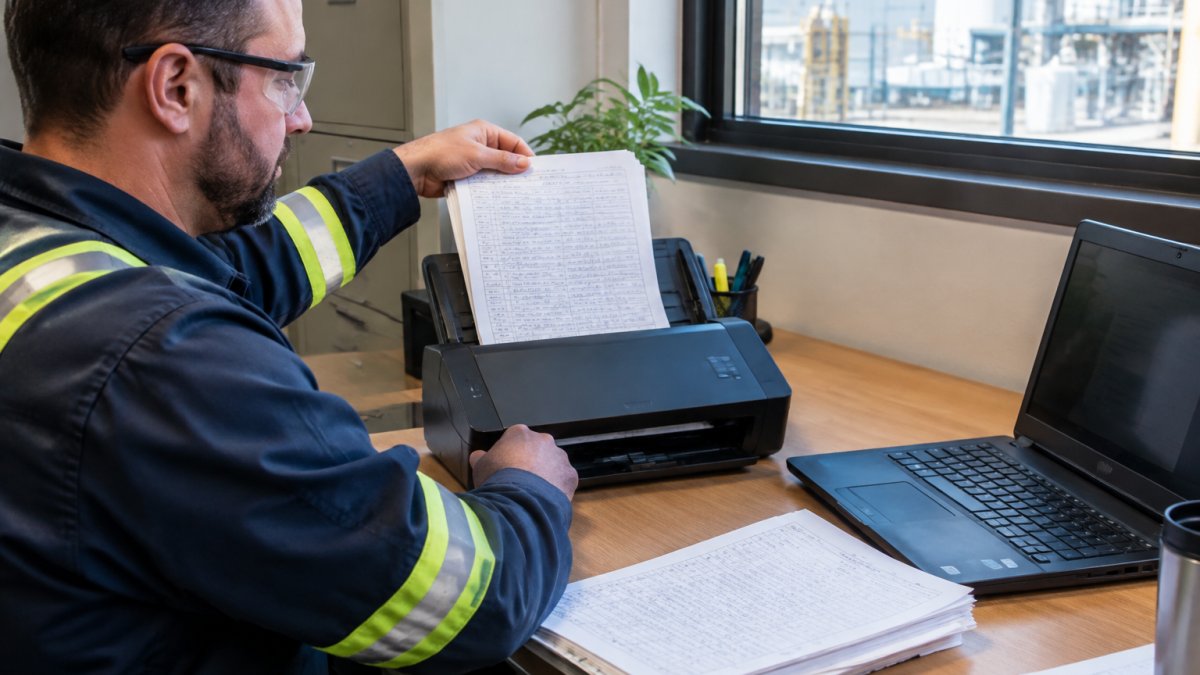
Keep the original paper until you have checked the digital copies. Note any pages that are damaged, faded, or hard to read.
Choose Scanning Equipment or a Scanning Service
You can scan in-house with a desktop scanner or a multifunction printer that has a document feeder. Look for a model that handles your page size and can save PDFs. Once these digital files are secured, the next challenge involves extracting the information into a structured format, a process that Synergy Business Group streamlines by removing the need for repetitive manual data entry.
Control OCR Accuracy and Handwriting Quality
Optical character recognition (OCR) turns scanned images into text you can search. Handwriting often reads poorly, so check every batch.
- Scan at a resolution high enough to read small handwriting
- Spot-check at least a few pages from each batch
- Correct machine numbers, dates, and part numbers first, since those drive search
Watch out: a search that misses a key part number can hide a repeat failure. Verify identifiers by hand.
Organize Records by Asset and Build Equipment Maintenance History
Sorting records by asset turns a pile of files into equipment history. Create a folder or record for each machine, then file every entry under the right asset ID.
Chronological order inside each asset folder makes patterns visible. You can see how often a pump fails or which parts get replaced most. That history is the main reason to digitize in the first place.
Choose Where Records Live: Spreadsheet, CMMS, or Custom App
Digitized records need a home, and the choice you make here determines whether the project pays off or stalls. The three common options are a shared spreadsheet, a computerized maintenance management system (CMMS), and a custom app. Each fits a different stage of maturity, and many teams move through all three over time.
Spreadsheet: fast start, fragile at scale
A shared spreadsheet is the cheapest and most familiar option. It works well for a single site with a few hundred service events and one or two people entering data. The limits appear quickly: no audit trail, easy accidental edits, weak permissions, and no link between a work order and the asset history. A spreadsheet is a reasonable bridge while you are still scanning and verifying, but plan an exit before volume grows.
CMMS: work orders plus history
A CMMS generally adds work orders, preventive maintenance schedules, parts inventory, and history tracking in one system. For most facilities, fleets, and industrial teams, this is the natural destination for digitized logs because it connects the scanned history to future work. When evaluating a CMMS, check how it handles imported historical records, whether it supports custom fields for your asset IDs, and how it exports data if you ever leave. For a broader look at dedicated maintenance software, see Capterra's overview of CMMS software.
Custom app: fit for unusual workflows
A custom app makes sense when your workflow does not match standard CMMS assumptions, for example, mobile-only technicians, unusual asset hierarchies, or tight integration with existing plant systems. If you want a simple CMMS built for small plants, try CMMS for small manufacturers. For a deeper comparison of options, read The Complete Guide to CMMS Computerized Maintenance Systems and 9 Manufacturing Software Picks for Discrete Manufacturing.
Migrate structured data, not just files
The most common failure is uploading scanned PDFs into a system without mapping them to structured fields. Before you migrate, build a template with one row per service event and the fields you defined during planning: asset ID, date, symptom, cause, repair action, parts used, technician, and follow-up.
Watch out: a CMMS that cannot import your historical fields will force manual re-entry, which often kills the project halfway through.
Decide with a short trial
Run a two-week trial with one asset and one technician. Enter a handful of historical events, create a work order, and search for a part number. The option that lets the team find history fastest without extra training is usually the right starting point, even if it is not the most powerful system available.
The three common options differ in how well they suit each stage of a digitization project.
| Option | Best for | Key limit |
|---|---|---|
| Spreadsheet | Single site, one or two people entering data | No audit trail, weak permissions |
| CMMS | Facilities, fleets, and industrial teams | Must import historical fields cleanly |
| Custom app | Unusual workflows, mobile-only technicians | Someone must own it long term |
| Two-week trial | Testing one asset and one technician | Finds the fastest option without extra training |
Start Your First Digitized Maintenance Log This Week
Pick one machine or one line and digitize its logs first. A small win builds confidence and shows the team how the new records work.
Here's a simple first-week plan:
- Choose one asset with a long repair history
- Build your log template with the fields above
- Scan that asset's pages and run OCR
- Check the key identifiers by hand
- Share the records and ask the team to search for something
If you have a spreadsheet your plant already uses, turn it into a working app. Send us one file and we send back a working app, with no coding and no IT project.
Last Updated: November 7, 2026
Frequently Asked Questions
What is the most effective way to digitize paper maintenance logs?
Start with a short plan: list the fields each log entry needs, such as asset ID, date, symptom, cause, repair, parts, and technician. Then scan the pages in batches, convert them to searchable PDFs or structured records, and check a sample of each batch against the originals before you retire the paper. Digitizing as you go, rather than all at once, keeps errors small and lets your team adjust the template early. Once the records are in a consistent format, they can be searched by asset and date instead of flipped through page by page.
Can paper maintenance logs be converted into searchable digital records?
Yes, but the quality depends on the scan and the handwriting. OCR software reads printed text well and handwriting less reliably, so plan to check a sample of converted pages against the originals. Scan at a resolution that keeps small handwriting legible, and for critical fields such as asset IDs or part numbers, consider manual data entry during conversion. Even with imperfect OCR, a scanned PDF with a consistent file name and asset tag is far easier to find than a box of paper.
Should maintenance logs be stored in a spreadsheet or a CMMS?
A spreadsheet works for a small team with few assets and one person who maintains it. As the number of assets, technicians, and scheduled tasks grows, a CMMS (computerized maintenance management system) handles work orders, scheduled maintenance, and equipment history more reliably. Many plants start with a structured spreadsheet and move to a CMMS once the template and data fields are stable, since clean data makes that migration far simpler.
How do you back up digital maintenance records?
Keep at least two copies in separate locations, such as a network drive and a cloud account with version history enabled. Restrict edit access to the people who need it, and export a copy of the master file on a regular schedule. Test a restore at least once a year so you know the backup works. Keep the original paper logs for a defined retention period, according to your industry and local record-keeping rules, before you dispose of them.